
Help Using the Archive
This is a quick overview of how the site is laid out, how to navigate the various sections, unravel the ridiculous clues of the GIF Elders, and how to play some classic Speccy games. You’ll learn how to navigate the site’s frames, panels, menus, and other relics of a bygone era, all lovingly recreated for modern browsers. Whether you’re here for nostalgia, curiosity, or to relive the glory days of waiting ten minutes for a game to crash... sorry load, this guide should help you find your way around.

Finding your Way Around
The area at the top of the page is the main navigation menu, which takes you to the primary sections of the site. (See About for more details).
The left-hand pane adapts to the section you’re in. For most areas, it provides quick links to the relevant game reviews. In Archive Home, About, and Help, it switches to a curated list of Spectrum related websites, with several new entries added in this 2026 reboot.
Things look a little different on mobile devices. The left hand panel is hidden, but can be viewed by clicking on the little button at the bottom of each page.
At the bottom of each main section you’ll find additional material (Further Reading) such as interviews, history, and more.
All game review pages include box art, instructions and the game itself, all ready to be played right in your browser (more on that below). You can click the box art to enlarge it, and click again to return to the original size.
The GIF Elders are from a bygone era, ancient, mysterious, and if you want my opinion, totally unnecessary nowadays. They keep muttering on about some kind of "legendary hidden clearing". They claim to guard its location. Apparently you have to hover your mouse cursor over them to hear their whisperings, though their clues are nothing but riddles, half-truths, and gibberish. Utter nonsense if you ask me!

Playing the Games
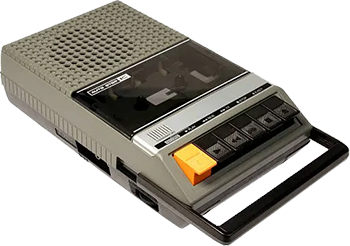
As well as including instructions and box art, game review pages also include a 'Load Game' option — click the cassette icon and the game runs in a popup window right there from within your browser, no downloads or setup required, It's all thanks to the excellent RAZE emulator. If you’d rather use your own emulator, you can right-click the cassette icon and save the file to your computer instead — I used to use the ZX32 emulator back in the day, but now use Spectaculator or Retro Virtual Machine. Other emulators are available! Most of the game ROMs here are tape images, TZX/TAP files, with a handful in .z80, +3 .dsk and .rom formats.
Games are set up to boot with the appropriate Spectrum model automatically — most are 48K versions, but games that require 128K should load in a 128K emulated Spectrum.
You should be able to use any game controller connected to your computer, as long as it is recognised by the OS. I have set each game to use whatever joystick the game supported, but You can change it by using the Gamepad dropdown box. Note that this only shows once you interact with your game controller. You can also use your computer's keyboard for control, or the built in on screen Spectrum keyboard (F7). When using RAZE on mobile device, the keyboard and virtual on-screen joypad is displayed by default.
The emulator loads TZX and TAP games at the original speed as Sir Clive intended, slowly! you can use the 'Turbo' button (F10) to speed things along, but honestly if you really want the full 1980's experience, you should sit and wait for the game to load, like I and millions of others had to!
I have the dither (display smoothing) on by default, as this is my personal preference. It approximates how an original CRT would have looked back in the 80s by slightly blurring the pixels, but if you do not like this effect you can turn it off by clicking the 'Dither' button or hitting F8.
The developer of RAZE has been incredibly helpful in getting the emulator working exactly the way I needed for this site. I contacted him through GitHub to ask whether the screen border could be widened to better match how a real Speccy on a CRT looked, and whether support for .dsk and .rom files could be added so every game here could run directly in the browser. He replied quickly and had a beta ready for testing the very next day. Just a week later, version 2.0 was finished with all the new functionality in place.
He later added several more useful features, including default Kempston support and default dithering. After that first round of updates, I requested a few more improvements — preventing the emulator from pausing when its popup loses focus, and enhancing joystick emulation so that games that use joysticks other than Kempston could be played with a connected controller. All implemented in version 2.1.
And now, new to version 2.2 is built-in POKE support — another feature I requested and implemented by Rodrigo. If you fancy bending the rules a bit — infinite lives, endless energy, no enemies, or skipping the slog — go on, treat yourself. I won’t shame you… at least not publicly.
With RAZE you can load pokes while the game is running by clicking the Pokes button and choosing the cheat you want. Just be warned: I didn’t create these pokes, and some may be duds or cause unexpected behaviour and crashes — I haven’t tested them all. If no Pokes button appears, it means there’s no built-in cheat for that game. In that case, you’ll need to do it the old-fashioned way: head over to Tipshop Pokes, find the game, and enter the poke manually into the emulator window. I just hope you can sleep at night!
I’d like to thank Rodrigo for all his work. It’s genuinely appreciated.
Spectrum games — especially later releases — often came on multiple cassette tapes, or included extra levels and alternate versions on side B. You’d sometimes have to flip the tape or load a second one to access another part of the game, or to choose between 48K and 128K versions. Because of this, ROM sets can contain several files: Side A, Side B, Tape 1, Tape 2, and so on. For these games you’ll see a separate page where you can choose which side to load. Just be aware that some B sides weren’t meant to load from cold — they were designed to be loaded from within the game at a specific point. So if Side 2/B refuses to start on its own, don’t worry — that’s normal behaviour for those titles.
Most of the game instructions are converted to HTML from the original text files found across various sources on the web, with a smaller number kept in their original PDF format. The text based ones look a little rough around the edges, but that’s just the way it has to be. Many of them include charts, diagrams, or carefully arranged layouts that tend to break if you try to “pretty them up” with CSS or additional formatting. To preserve their original structure, the instructions are presented much as they were in their source form. I have, however, gone through and corrected a good number of spelling errors to improve readability.